
A PC is a personal computer, and its parts work together to take input, process data, store files, and show results on a screen. If you can spot the system unit, monitor, keyboard, mouse, memory, storage, and ports, you already know the basics. This matters in a fundamentals of information technology course because the first assignment often asks you to name hardware before you touch software. A desktop in a lab, a home office tower, and a thin all-in-one still follow the same basic idea: they accept a signal, do the work, and show an answer. The case may look different, but the jobs stay the same. This article gives you a tour of a PC in plain English. You will see what each part does, where it sits, and how to tell one piece from another without guessing. That helps in class, and it also helps when a screen goes black, a cable feels loose, or a machine will not start after a power cut. Once you learn the roles, a computer stops feeling like a box of mystery parts and starts feeling more like a simple team with clear jobs.
What Is a PC and What Are Its Parts?
A PC is a personal computer that uses several hardware parts to take input, process information, store files, and show output on a screen. In a fundamentals of information technology course, that sounds like a textbook line, but the real idea is simple: the machine gets data from you, works on it fast, and sends back a result in 1 second or less for small tasks.
The catch: A PC is not one single thing, and that trips up a lot of first-time students. The keyboard, mouse, monitor, and system unit all count as parts of the same machine, even when they sit 2 feet apart on a desk. A laptop squeezes those jobs into one shell, while a desktop spreads them across separate pieces.
Think of a PC as a small work team with 4 jobs: input, processing, storage, and display. The keyboard and mouse send signals, the CPU handles the work, storage keeps data for later, and the monitor shows what happened. That setup shows up in homes, offices, libraries, and computer labs from 2024 and 2025.
The smart move is to learn the parts by what they do, not by how fancy they look. A shiny all-in-one and a plain tower can run the same apps, but the shape changes how you identify each part. If you can point to the system unit, name the monitor, and explain why RAM matters, you already have the core skill.
Which Parts Make Up the System Unit?
The system unit is the main case that holds the PC's core internal parts, and it usually sits under or beside the desk in a tower that stands about 14 to 20 inches tall. Inside that box live the motherboard, CPU, RAM, storage drive, power supply, and cooling parts that keep the machine running.
The motherboard acts like the big board that connects everything. It carries slots and sockets for the CPU, memory, storage links, and ports that tie the parts together. If the motherboard fails, the whole PC stops acting like one machine and starts acting like a pile of separate parts.
The CPU, or central processing unit, does the main thinking. It handles instructions one after another at very high speed, and modern chips can run billions of cycles each second. RAM sits nearby and holds the data the CPU needs right now, while a storage drive keeps files, apps, and the operating system after the power goes off.
Reality check: Most students stare at the case and miss the real work inside it. The power supply turns wall power into usable power for the PC, and the cooling fan or heat sink keeps heat from building up past safe levels. That part matters more than people think, because heat can slow a computer down or shut it off.
A good rule: the system unit does not show your work, but it makes the whole show possible. A desktop tower from Dell, HP, or Lenovo may look plain from the outside, yet it carries the parts that decide speed, storage space, and how many tasks the machine can handle at once.
How Do Monitor, Keyboard, and Mouse Work?
The monitor, keyboard, and mouse form the user's main link to the PC, and that matters because a computer without input and output feels dead in less than 1 minute. The monitor shows results, the keyboard sends text and commands, and the mouse controls the pointer so you can click, drag, and open apps. In a classroom lab, these 3 parts tell you almost everything about how the user talks to the machine.
- The monitor is output. It shows text, images, video, and error messages, usually through HDMI or DisplayPort.
- The keyboard is text input. A standard keyboard has 101 or 104 keys, plus shortcuts like Ctrl+C and Alt+Tab.
- The mouse controls pointer movement. A 2-button mouse with a scroll wheel still covers most basic tasks.
- Touchpads and touchscreens do both input jobs in one surface, which changes how you click and scroll.
- Wireless models cut cable clutter, but they still need batteries or charging every few days or weeks.
What this means: If you can name these 3 parts, you can explain how a person uses a PC without sounding lost. The mouse gets too much attention in beginner classes; the monitor often matters more because it tells you whether the machine is actually working. A dead screen, a loose HDMI cable, or a disabled display can look like a bigger problem than it really is.
Learn Fundamentals Of Information Technology Online for College Credit
This is one topic inside the full Fundamentals Of Information Technology course on UPI Study — a self-paced, online class that earns real college credit. Credits are ACE and NCCRS evaluated and transfer to partner colleges across the US and Canada. Courses start at $250 with no deadlines and lifetime access.
Browse IT Fundamentals Course →Why Do Memory and Storage Matter?
RAM and storage do different jobs, and mixing them up causes a lot of confusion in 100-level computer classes. RAM holds data the PC is using right now, while storage keeps files, apps, photos, and the operating system for later. A computer with 8 GB of RAM can usually handle schoolwork, web tabs, and video calls better than one with 4 GB.
Memory acts like a short-term desk. The CPU grabs the things it needs from RAM because that is faster than pulling them from a drive every time. Storage acts like a filing cabinet, so the machine can shut down at 10 p.m. and still open the same document at 8 a.m. the next day.
A hard drive, or HDD, uses spinning parts and usually gives more space for less money. A solid-state drive, or SSD, has no moving parts and loads Windows, macOS, or Linux much faster. A 256 GB SSD feels small for big video projects, but it works well for notes, browsers, and office apps.
Worth knowing: Students often call both parts "memory," and that creates a mess on quizzes. RAM clears when the power turns off, but storage keeps data after shutdown. That difference shows up fast when a laptop freezes during 6 open browser tabs or when a desktop boots in 15 seconds instead of 2 minutes.
My honest take: SSDs make the biggest feel-better upgrade for most users, while extra RAM helps when you keep many apps open at once. If you understand that split, you can read a spec sheet without getting tricked by marketing.
Which Ports and Connections Should You Recognize?
A typical PC has 6 to 10 ports around the front, back, and sides, and each one gives the machine a different job. Some ports carry video, some send data, some move sound, and some feed power into the system unit.
- USB ports connect flash drives, keyboards, mice, printers, and phones. USB-A looks flat and wide, while USB-C looks small and oval.
- HDMI sends video and sound to a monitor or TV. A single HDMI cable can carry both signals.
- Audio ports connect headphones, speakers, and microphones. Many desktop PCs use 3.5 mm jacks with color labels.
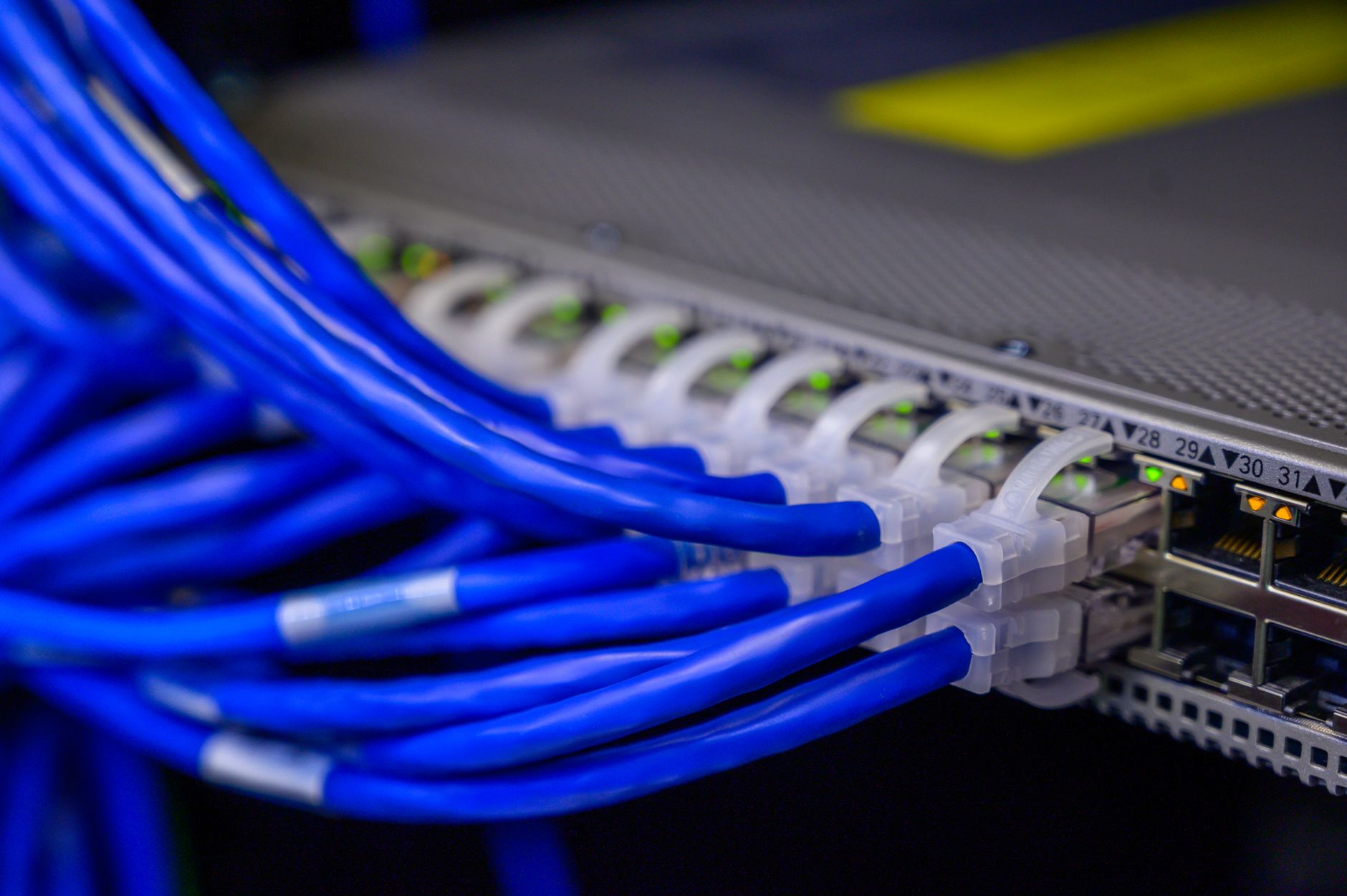
- Ethernet uses a wider RJ-45 port for wired internet. It often gives steadier speed than Wi-Fi in a dorm or office.
- The power port feeds electricity into the PC or monitor. On many laptops, the charger plugs in on the side.
- Older PCs may still have VGA, DVI, or PS/2 ports. You see them less now, but they still show up in older labs and repair shops.
How Do PC Parts Work Together?
A PC works in a chain: input starts the process, the CPU and RAM handle the task, storage saves the result, and the monitor shows it back to you. That sounds basic, but it explains almost every common action, from opening a file in 2 seconds to loading a website in a browser.
Say you click a document with a mouse and type 40 words on a keyboard. The PC sends those signals through the motherboard, the CPU processes them, RAM holds the live work, and storage saves the file when you press Ctrl+S. The monitor then shows the updated page so you know the computer heard you.
Bottom line: The parts do not work well alone; they work because each one has a job and passes work to the next part. A browser session, a spreadsheet, and a video call all use the same pattern, even if the apps look very different. If one cable, port, or component fails, the whole chain feels broken fast.
That is why a tour of a PC matters in a fundamentals of information technology course. Students who can trace the flow from keyboard to CPU to screen usually handle labs with more confidence, and they waste less time guessing where a problem starts.
Frequently Asked Questions about PC Hardware
This applies to you if you're learning basic computer hardware, and it doesn't cover tablet-only or phone-only devices. A PC usually includes a system unit, monitor, keyboard, mouse, storage, memory, and ports, with the CPU and motherboard inside the system unit.
A PC is a personal computer built from 7 main parts: the system unit, monitor, keyboard, mouse, storage, memory, and ports. The system unit does the processing, the monitor shows output, and the keyboard and mouse send input.
The most common wrong assumption is that the monitor is the computer itself. The monitor only shows what the PC does; the real work happens in the system unit, where the CPU, RAM, storage drive, and motherboard handle the tasks.
What surprises most students is how many important parts sit outside the system unit. A PC setup can have 2 to 4 or more ports in easy reach, plus the monitor, keyboard, mouse, speakers, and sometimes a printer.
Start by finding the system unit, then trace the cables to the monitor, keyboard, mouse, and power source. That first check helps you spot 3 things fast: where data enters, where it gets stored, and where it shows up on screen.
Storage keeps files long term, and memory holds data the PC uses right now. RAM loses its data when you shut down, while an SSD or hard drive keeps Windows, apps, and documents after power turns off.
Most students memorize names, but what actually works is matching each part to its job: input, processing, output, or storage. That habit fits a fundamentals of information technology course and makes the terms stick faster.
If you mix up the parts, you'll trouble-shoot the wrong thing and waste time on simple fixes. A loose keyboard cable, a switched-off monitor, or a full storage drive can look like a dead PC when it's not.
The keyboard and mouse send input, and the monitor shows output. You type commands, click icons, and read results on a screen with common sizes like 21 to 27 inches, while the PC processes each action inside the system unit.
Yes, a fundamentals of information technology course can give you college credit through an online course that awards ace nccrs credit at participating schools. That setup lets you study online and earn transferable credit for the same class.
You should know USB, HDMI, Ethernet, audio, and power ports on a basic PC. USB connects devices like a mouse or flash drive, HDMI sends video to a monitor, and Ethernet brings in wired internet.
Final Thoughts on PC Hardware
A PC looks complicated until you split it into jobs. The system unit does the heavy work. The monitor shows results. The keyboard and mouse send your actions in. RAM handles live tasks, storage keeps things for later, and ports connect the whole setup to the outside world. That basic map helps in class, at home, and in a lab with 30 other machines. You do not need to memorize every chip or cable on day one. You just need to know what each part does and where to look when something stops working. A student who can identify a case fan, a USB port, an SSD, and a monitor cable already has a strong start. The better you know the hardware, the less the PC feels like a black box. You spot problems faster. You ask better questions. You stop mistaking storage for memory or a monitor for the whole computer. Keep this simple test in mind the next time you sit down at a desk: can you point to the input, the processing part, the storage part, and the output part in under 10 seconds? If you can, you already understand the core of a personal computer.
How UPI Study credits actually work
Ready to Earn College Credit?
ACE & NCCRS approved · Self-paced · Transfer to colleges · $250/course or $99/month