
An operating system is the main software layer that lets you use a computer and lets apps talk to hardware. It sits between you and the machine, so a laptop, phone, or desktop can do real work instead of acting like a pile of parts. That is the short answer, and it matters because most people only notice the OS when it goes wrong. Students often make one very common mistake: they think the OS is just the desktop screen, the Start menu, or a browser like Chrome or Safari. Nope. The screen is only one part of the interface, and the browser is just one app. The OS controls memory, files, devices, sign-ins, updates, and the way programs share the CPU. That is why a computer can have a fancy wallpaper and still depend on boring background code every second. If you open a document, play music, connect a printer, or switch between 12 tabs, the OS is the thing keeping all of that from turning into chaos. In an introduction to computing course, this idea shows up early for a reason. Once you understand the OS, the rest of the machine makes sense faster.
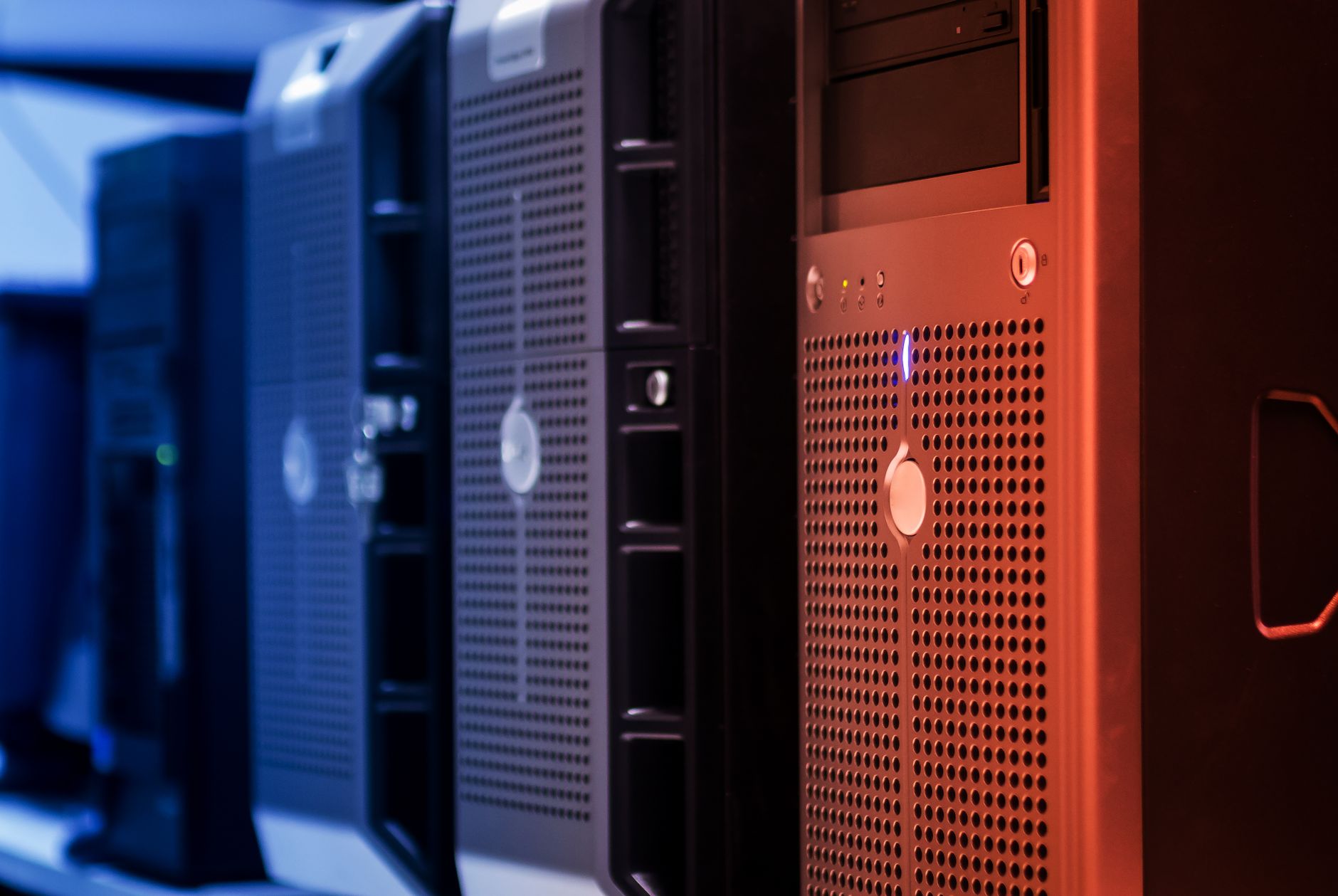
What Are Computer Operating Systems?
A computer operating system is the main software layer that runs the machine, controls hardware, and gives apps a place to live. Think of it as the control room under the screen, not the screen itself. On a modern laptop, that layer may start in under 30 seconds, then keep working for hours while you open files, browse, stream, and print.
Common confusion: The biggest student mistake is calling the desktop or the browser “the operating system,” and that mix-up causes trouble in day one of an introduction to computing class. The desktop is only the visual front end, and Chrome, Edge, or Safari are just programs that run on top of the OS. The OS handles the parts you do not see, like memory use, device control, and app permissions.
That hidden work matters because one machine can run 5, 10, or 20 apps at once without each app grabbing the same hardware at the same time. The OS keeps order. It decides which program gets CPU time, which file opens, and which device driver talks to the printer or display. I like this definition because it cuts through the fluff: the OS is the software that runs everything a guide to computer operating systems should start with.
A phone OS does the same basic job as a desktop OS, even if the screens look different. Android and iOS still manage storage, apps, touch input, and security, just with a mobile layout. That is why students who only stare at icons miss the real system. The icons are the storefront. The OS is the building behind it.
Reality check: A 2025 laptop with 16 GB of RAM still needs an OS just as much as a 2005 desktop did, because hardware alone cannot turn a file into a usable program. The machine needs rules, and the OS supplies them. If you want a clean introduction to computing course, this is the first idea to lock in.
Why Is an Operating System Essential?
An operating system is essential because raw hardware cannot speak human language, and most people do not want to type device commands by hand just to open a PDF. The OS turns clicks, taps, and typed words into machine actions. Without it, a computer looks more like a pile of parts than a usable tool.
The catch: A computer with no OS can still power on, but that does not make it useful for a normal user in 2026. You would face firmware screens, device-level setup, or bare hardware prompts that expect technical steps most people never want to touch. The OS hides that mess and gives you a simple path to work.
That bridge matters every time you open a document in 2 seconds, save a photo, or switch from email to a video call. The OS translates those actions into instructions for the CPU, storage drive, speakers, and network card. Without that translation layer, each app would need to know how to talk to every device on its own, which would be a disaster.
I think this is where students finally get the point. The OS does not just make a computer prettier. It makes the machine understandable. A Windows PC, a Mac, and a Linux laptop can all run the same basic kind of tasks because each one has an OS doing the hard coordination work.
There is a downside, though. The OS can also slow things down when it uses too much memory, installs updates at a bad time, or fights with old drivers. Still, the trade-off beats manual hardware control by a mile. A person can use a modern computer because the OS stands between human intention and the raw machine.
How Does an Operating System Manage Hardware?
An operating system manages hardware by acting like a traffic cop for the CPU, keyboard, mouse, display, printer, storage, and every other device attached to the machine. It decides who talks first, who waits, and how long each program gets to use a resource. On a busy system, that control can change every few milliseconds.
Hardware traffic: The OS uses drivers to speak the language of specific devices, so a USB printer from HP, a monitor from Dell, and a keyboard from Logitech can all work through one central system. Drivers matter because hardware brands do not all use the same commands. The OS translates those commands so programs do not need to learn each device one by one.
This is also where resource control gets real. If 3 programs want the CPU at the same time, the OS slices time into tiny pieces and gives each one a turn. If one app tries to use too much memory or hog the disk, the OS pushes back. That is not a fancy extra. That is the only reason a laptop can keep running smoothly while you stream music and edit a file at once.
I have seen students assume hardware works on its own, and that idea falls apart fast when a printer jams or a webcam fails to open. The OS sits in the middle of that action. It tracks device status, sends commands, and watches for errors. When the system sleeps, wakes, or shuts down, the OS coordinates those steps too.
A bad driver can break the whole experience, which is annoying and very real. Still, the OS gives you a single control layer instead of forcing you to manage 12 separate machines inside one box. That design is the whole trick.
Learn Introduction To Computing Online for College Credit
This is one topic inside the full Introduction To Computing course on UPI Study — a self-paced online class for college credit. Credit recommended by NCCRS; your college decides how credits transfer. Courses start at $250 with no deadlines and lifetime access.
Browse Introduction To Computing →How Does an Operating System Handle Files, Memory, and Programs?
The OS handles files, memory, and programs in the background so you can open, save, switch, and close apps without thinking about where every byte goes. That hidden work keeps a system stable on 8 GB of RAM, 16 GB of RAM, or more, and it stops programs from stepping on each other. File management stores data in folders and paths, memory management gives each program room to run, and process management keeps the CPU from getting overloaded. When those jobs work together, your computer feels calm instead of twitchy.
- File management keeps documents, photos, and downloads organized in named folders and paths.
- Memory management lets 2 or 12 apps run without writing over each other’s data.
- Process management starts, pauses, and ends programs so the CPU can share time fairly.
- Multitasking lets a browser, music app, and video call run at the same time.
- App launching loads software from storage into memory before you see the window.
Memory pressure: If a system has only 4 GB of RAM, the OS has to work harder and may slow down when too many apps stay open. That is why older laptops feel tired faster than newer ones with 16 GB or 32 GB. The OS does not create extra memory out of nowhere, but it does manage what you have with a lot more care than a human could.
Programs also need separation. If one app crashes, the OS tries to keep the others alive, which saves you from losing everything in one ugly hit. That separation is one reason operating systems matter in both desktop and mobile computing.
Introduction to Computing explains these ideas in a way that fits a first course, and Introduction to Operating Systems goes deeper into processes, memory, and file systems.
How Do Users Interact With an Operating System?
Users interact with an operating system through screens, menus, commands, settings, and security prompts. A Windows laptop, a MacBook, and a Linux desktop can look very different, yet all three still turn human input into machine action.
- A graphical user interface uses icons, windows, and menus. Windows 11 and macOS make this the default path for most users.
- A command line lets users type instructions like copy, dir, or ls. That style feels bare, but it gives exact control.
- Settings screens handle Wi‑Fi, sound, display, and updates. One click can change brightness or add a Bluetooth device.
- Notifications show alerts for mail, battery, updates, and calendar events. A phone may flash 20 alerts a day.
- Login screens and passwords protect accounts before the desktop appears. Face ID, PINs, and fingerprints all sit in this layer.
- Different systems look distinct, but the job stays the same: translate a human request into a machine task.
User side: The interface is the friendly face, not the whole system, and that point matters in any online course that covers computers. A student might click a folder icon on day 1 and type a Linux command on day 10, but the OS still does the same core work behind both actions.
Some users love the mouse, while others prefer the keyboard because it moves faster for repeated tasks. I think that split is healthy. It shows that the OS can fit different habits without changing its basic job. Introduction to Networking helps explain why the same computer also has to talk to other machines.
What Should Students Know About Common Operating Systems?
Windows, macOS, Linux, Android, and iOS all do the same basic operating system job, but they serve different devices and user styles. Windows dominates many desktop and laptop setups, macOS ships on Apple computers, Linux runs everything from servers to hobby PCs, Android powers most phones worldwide, and iOS runs on iPhone and iPad devices. That spread matters because the core idea stays the same across 5 major systems.
If you are taking an introduction to computing class, you do not need to memorize every menu path on day 1. You need to understand the pattern: the OS manages hardware, files, memory, programs, and user input. That pattern helps in an online course because you can move between screenshots, labs, and quizzes without getting lost in brand names. It also helps with transferable credit and ace nccrs credit, since many college-level courses test the concept, not just the button locations.
Course angle: Students often think operating systems are only for IT people, but that view misses how often everyone uses them every day. A phone lock screen, a laptop update, and a file save dialog all come from the same system layer. That is not trivia. It is the whole structure.
I like teaching OS basics early because it pays off fast in later topics like networking, storage, and security. Once a student sees that Android and Windows share the same job even with different screens, the subject stops feeling random. It starts looking like a clean set of rules instead of a pile of brand names.
Frequently Asked Questions about Operating Systems
If you confuse the operating system with apps, you miss the thing that controls the computer’s 3 main jobs: hardware, memory, and files. Then you can’t explain why Windows, macOS, Linux, or Android starts programs, saves work, and lets you click, type, or touch the screen.
The most common wrong assumption is that the operating system and a normal app do the same job. They don’t. The OS is the software that runs everything underneath your apps, while Chrome, Word, and games sit on top of it and depend on it to work.
An operating system is the main software that controls a computer and helps you use it. It handles the keyboard, mouse, screen, storage, memory, and programs, so your machine can do more than just power on.
A typical introduction to computing course covers at least 5 core OS topics: hardware control, file management, memory use, program loading, and user interaction. That foundation matters because the OS sits between you and the machine every time you save a file or open an app.
Most students memorize terms like RAM, CPU, and file system, but that fades fast. What actually works is tracing one task, like opening a browser, and seeing how the OS uses memory, storage, and input devices to make it happen.
This applies to anyone taking an introduction to computing course, an online course, or a college credit class that mentions ace nccrs credit or transferable credit. It doesn't help much only if you already understand how Windows, macOS, Linux, or Android manages programs and files.
What surprises most students is that the operating system works even when no app is open. It still manages background tasks, memory, and hardware control the whole time, which is why your computer can keep running after you close a window.
Start by listing 4 OS jobs: hardware, files, memory, and programs. Then match each job to one example on your own device, like saving a document, opening an app, or connecting a mouse.
An operating system is essential because it gives your computer a way to use the CPU, memory, storage, and input devices without chaos. Without it, you would not have a normal screen, file system, or simple way to launch programs.
Operating systems organize files into folders and track where data lives on the drive, which keeps your work from turning into a mess. They also manage memory so 2 or more programs can run at once without stepping on each other.
Operating systems turn clicks, taps, and key presses into actions the machine understands. They manage the screen, touchpad, keyboard, and menus, so you can open apps, move files, and change settings without talking directly to the hardware.
Final Thoughts on Operating Systems
An operating system is not a background detail. It is the layer that makes a computer usable at all. It manages hardware, files, memory, programs, and the screen you touch or click, and it does that work every second the machine stays on. That is why the same laptop can feel simple to a student and deeply technical to a systems admin. The difference comes from how much of the OS you can see. The cleanest way to remember the idea is this: hardware gives a computer power, but the OS gives it shape. A CPU can process instructions, storage can hold data, and a screen can show images, yet none of that becomes a normal computer experience until the operating system organizes the parts. That is why the common mistake about the OS matters so much. If you confuse the desktop, browser, or app with the system itself, you miss the engine under the hood. Students who get this concept early usually handle later topics like networking, file systems, and security with less stress. They stop treating the computer like a mystery box. They start seeing the rules. If you want the next step, review the OS terms again and match each one to a real task on your own device today.
How UPI Study credits actually work
Ready to Earn College Credit?
Credit recommended by NCCRS · Self-paced · Your college decides how credits transfer · $250/course or $99/month (US)