
You can write HTML and CSS in a plain text editor or a code editor, and both let you save files as .html and .css. That is the short answer, and it matters because the first tool you pick shapes how fast you learn the basics. A beginner does not need a flashy app that designs pages for you. You need a place to type clean text, save it correctly, and open it in a browser. The safest starter setup stays simple: free, light, and easy to control. Notepad on Windows, TextEdit on macOS in plain text mode, and editors like Visual Studio Code all work for this job. The big difference is comfort. A plain text editor gives you almost no help, while a code editor adds color, auto-indent, tabs, and search. That extra help saves time once you start juggling 2 files, then 5, then 20. Students asking what software do i use to write html and css usually worry about picking the "right" one on day 1. That worry wastes energy. The real goal is to learn the habit: write code, save it, refresh the browser, fix the mistake, repeat. A good introduction to html software should help you do that loop fast, not distract you with menus you will never touch. If your tool can save a file in 5 seconds and keep your code readable, it already does the job.
What Software Do I Use To Write HTML And CSS?
You can write HTML and CSS in a plain text editor or a code editor, and both save clean files with .html and .css extensions. That simple setup beats fancy software for most beginners because the browser, not the editor, shows the final page.
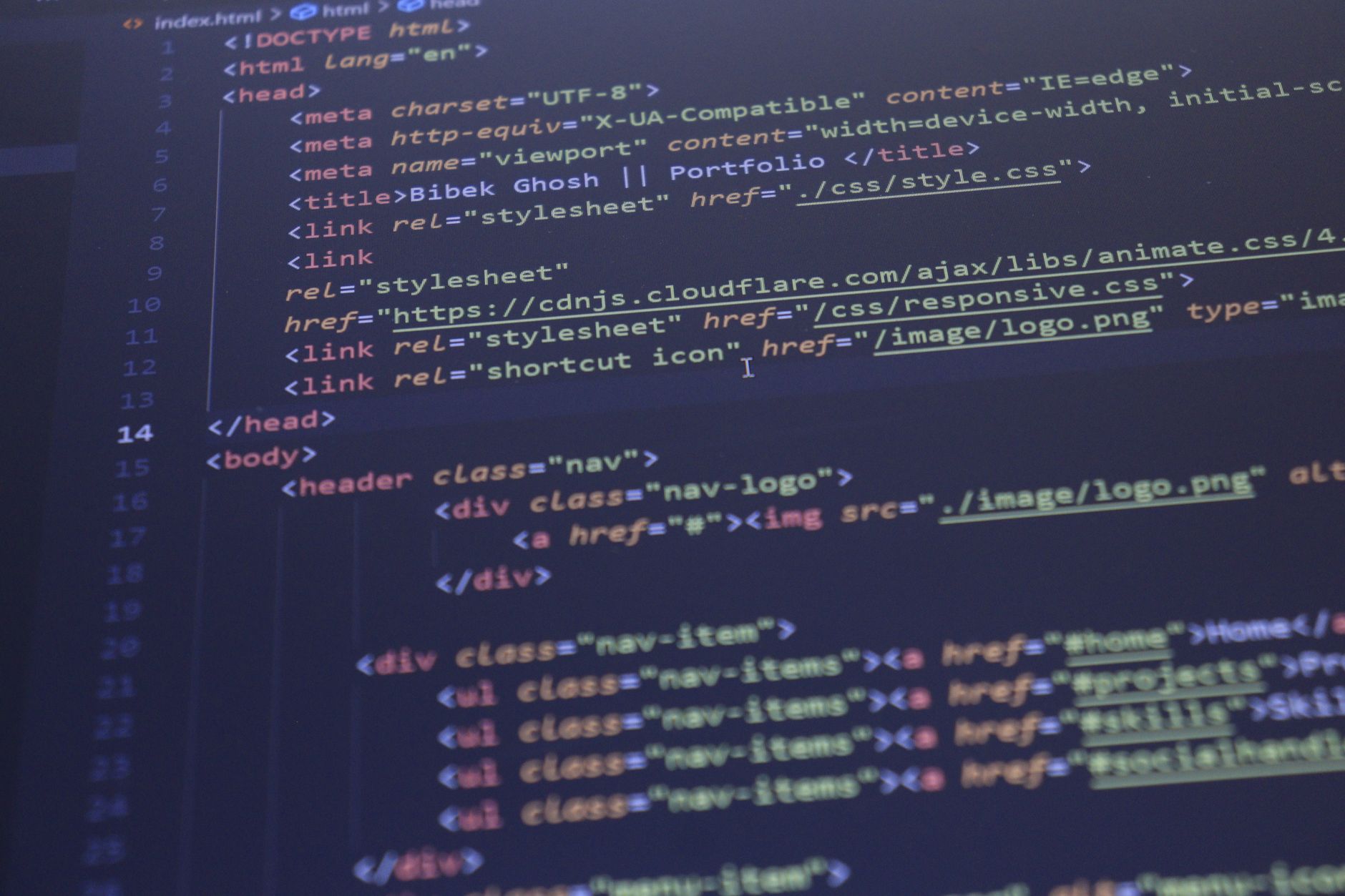
A plain text editor does the bare job. On Windows, Notepad has worked for years; on macOS, TextEdit works if you switch it to plain text mode. A code editor does more. Visual Studio Code, Sublime Text, and Notepad++ add syntax highlighting, line numbers, auto-indent, and file tabs. Those extras help once you start managing 2 or 3 files at the same time.
The catch: The editor should not try to build the webpage for you. New students often waste time on software with heavy design tools, when the real skill lives in typing tags, saving the file, and checking the result in a browser like Chrome or Firefox.
Free tools win here. Visual Studio Code costs $0, Notepad costs $0, and TextEdit comes with macOS. You do not need a $99 app or a paid subscription just to write a first Introduction to HTML and CSS practice file. A beginner setup should feel almost plain. That is not a weakness. It keeps the focus on the code, where the learning happens.
Reality check: A lot of polished software looks helpful for 10 minutes and gets annoying after 2 weeks. If your editor slows you down, hides your files, or buries the save button, it is the wrong pick for HTML and CSS work.
Which Beginner HTML And CSS Tools Work Best?
Three starter tools cover most student needs: plain text editors, code editors, and browser-based editors. The best one depends on how much help you want, whether you work offline, and how fast you want to move from typing to testing. A lot of people overthink this and end up using a tool that looks impressive but slows them down after the first week. That is a bad trade.
Worth knowing: A cheap tool is not the same as a weak tool. In HTML and CSS, a simple editor that saves correct files often beats a pricey app with 40 features you never touch.
| Tool | Cost | Helpful features | Offline use | Best use case |
|---|---|---|---|---|
| Plain text editor | $0 | Basic save, clean text | Yes | First 1-2 pages |
| Code editor | $0-0 | Syntax highlighting, tabs, auto-indent, search | Yes | Most beginners |
| Browser-based editor | Free tier / paid plans vary | Live preview, share link, templates | No | Quick practice, classroom demos |
| Visual Studio Code | $0 | Extensions, file explorer, terminal | Yes | Long-term starter setup |
| Notepad / TextEdit | $0 | Very light, simple save | Yes | Absolute basics |
The comparison points to one blunt answer: most students should start with a code editor, not a browser toy and not a paid suite. If you want a deeper tools for crafting web content introduction to html software setup, a free editor plus a browser gives you enough power for months, not minutes.
How Do HTML And CSS Editors Fit The Workflow?
HTML and CSS editors sit in the middle of a very small loop: write code, save the file, open it in a browser, refresh, and fix what looks wrong. That loop can happen 20 times in one hour, and that is normal. The editor does not replace the browser. It feeds it.
HTML and CSS work as a pair. Your HTML file, often named index.html, holds the page structure, and your styles.css file controls the look. If you miss the .html or .css extension, the browser may treat the file like plain text, which means no styling and a lot of confusion. File names matter too. A typo like style.csss can waste 15 minutes on a problem that had a tiny cause.
What this means: Small habits matter here. Save both files in the same folder, link the CSS file inside the HTML head, and refresh the browser after each change. That routine turns abstract rules into visible results in under 1 minute.
A beginner editor fits right into that routine because it keeps the files visible and the code readable. Visual Studio Code shows your project folder on the left, which helps when you move from 1 file to 4 files. Browser-based tools skip the local folder step, but they also hide part of the real workflow. That tradeoff helps in a classroom, yet it can leave students shaky when they later work on their own machine.
For an introduction to html and css course, the best software teaches the same habit the web uses in real life: edit, save, refresh, repeat.
Learn Introduction To Html Css Online for College Credit
This is one topic inside the full Introduction To Html Css course on UPI Study — a self-paced online class for college credit. Credit recommended by NCCRS; your college decides how credits transfer. Courses start at $250 with no deadlines and lifetime access.
Explore HTML CSS Course →Which Features Matter Most In A Beginner Editor?
A beginner editor should help you spot mistakes fast, not bury you under settings. Most students only need 6 core features in the first 2 weeks, and the rest can wait.
- Syntax highlighting colors tags, attributes, and CSS rules so your eyes catch errors faster. That matters on day 1, not after a 12-week course.
- Auto-indent keeps nested HTML easier to read. One misplaced tab can turn a 20-line page into a mess.
- File tabs help you switch between index.html and styles.css without losing your place. That saves time once you build 2 or more pages.
- Live preview shows changes as you save or refresh, which helps beginners see results in seconds. Nice to have, not required.
- Search helps when your file grows past 100 lines. Finding a class name by hand gets old fast.
- Extensions can add small tools later, but do not chase them on week 1. Many people install 8 and use 2.
- Built-in terminal helps only if you plan to run local tools later. Skip it if you just want to learn HTML and CSS first.
Bottom line: Pick features that save 5 minutes, not features that look cool in screenshots. A clean editor with syntax colors and tabs beats a bloated setup every time.
How Should Students Set Up Their First Editor?
Set up your first editor in one sitting, not over 3 days. A simple setup takes about 15-30 minutes, and most learners only need a few hours per week to get comfortable with the basics.
- Choose one editor and stop shopping. Visual Studio Code, Notepad++, or TextEdit in plain text mode all work for a first project.
- Create one project folder on your computer. Put both files there so you do not lose track of your work after 2 or 3 saves.
- Make an index.html file and a styles.css file. Use those exact names for your first page so the browser can load them easily.
- Link the CSS file inside the HTML head. One missing line can break the whole style sheet, and that mistake usually takes 5 minutes to spot.
- Open index.html in a browser like Chrome or Firefox, then refresh after every change. That 1-step habit teaches you faster than reading 20 pages of notes.
Reality check: You do not need to study 10 hours a week to start. Two or 3 focused hours can teach you enough to make a heading, a paragraph, and a color change without panic.
If you want guided practice, a structured Introduction to HTML and CSS path can help you match the editor to the lesson instead of guessing your way through setup.
Why Does The Right Tool Help Learning?
The right editor cuts friction, and friction kills momentum fast. If you need 6 clicks just to save a file, your brain spends more energy on the tool than on the HTML tags or CSS rules. A clean editor keeps the work visible and the learning simple.
That matters in an online course or a college credit setting because students need to practice the same steps again and again. A good setup helps you move from one lesson to the next without getting stuck on file names, missing extensions, or weird formatting. A bad setup turns a 20-minute task into a 2-hour fight.
This also matters for transferable skill building. HTML and CSS do not change just because you study online, earn college credit, or take an ace nccrs credit course. The habits stay the same: save files cleanly, test in a browser, and fix small errors one at a time.
Some students think they need advanced software before they start. That idea wastes money and time. A $0 editor plus a browser already gives you the core routine used in real web work. Fancy tools can wait until you know why you need them.
A good introduction to html software lets you focus on rules, not gadgets. That is the whole point.
Frequently Asked Questions about HTML CSS
Start with a plain text editor like Notepad on Windows or TextEdit on Mac, then save your files as .html and .css. If you want a smoother setup, use a code editor like VS Code, which gives you line numbers, tabs, and color coding.
This applies to you if you're learning the basics of HTML and CSS, and it doesn't fit if you want built-in tools like autocomplete, file trees, and error hints. Plain text editors work for small practice files, but code editors make a beginner setup easier once you start building 3 or 4 pages.
You only need 2 things: a text or code editor and a browser like Chrome, Firefox, or Edge. A simple setup costs $0, and that works for an introduction to html software workflow because you write code in the editor, save, then refresh the page in the browser.
Most students start with whatever comes on their laptop, but a code editor like Visual Studio Code usually works better after the first day. It handles HTML and CSS files cleanly, and you can add extensions later if you take an introduction to html and css course or study online.
If you choose the wrong tool, you'll waste time fighting the editor instead of learning the code, and small mistakes like saving a file as .txt can break your page. That can slow down a college credit or online course project by hours.
The most common wrong assumption is that you need expensive software, but you don't. Free tools can handle HTML and CSS, and ACE NCCRS credit courses often expect you to use the same basic editors that professionals use for simple web pages.
Yes, you can write both in the same code editor, and that setup works for almost every beginner. The caveat is that HTML and CSS should stay in separate files once your page grows past 1 or 2 sections, because that keeps your work easier to edit.
What surprises most students is that the browser counts as a testing tool, not just a place to view pages. You write in the editor, save the file, then refresh Chrome or Firefox to see changes right away, which makes the workflow fast.
No, you usually don't need special software for a transferable credit web course; a free code editor and a modern browser cover the basics. A laptop with 8 GB of RAM handles VS Code well, and many students study online with that setup.
The best beginner setup uses VS Code, a browser, and one folder for all your files. That keeps your tools for crafting web content introduction to html software simple, and it helps you stay organized when you build your first 5-page practice site.
Final Thoughts on HTML CSS
For HTML and CSS, the best software often looks almost boring. That is a good sign. A free text editor or code editor, a browser, and a folder with two files can carry you through your first pages without extra cost or confusion. Students usually make one of two mistakes. They either pick a tool that feels too bare and stop too soon, or they grab a flashy app and spend more time clicking than coding. A sensible editor sits in the middle. It gives you syntax colors, tabs, and maybe live preview, but it still leaves the real work in your hands. That matters because web skills grow through repetition. Write a heading. Save the file. Refresh the browser. Change one CSS rule. Repeat that loop 20 times, and the logic starts to stick. After that, features like search, extensions, and a terminal start making sense because you have a use for them. If you are starting from zero, pick one editor today and make one page before you tinker with anything else. A good first setup does not need luck. It needs 15 minutes, a folder, and the nerve to begin.
How UPI Study credits actually work
Ready to Earn College Credit?
Credit recommended by NCCRS · Self-paced · Your college decides how credits transfer · $250/course or $99/month (US)