
A computer boots up by waking the power supply, checking hardware through firmware, loading a bootloader, starting the operating system kernel, and then launching drivers and services until you reach the desktop. That whole chain usually starts in under 10 seconds on a modern SSD system, but older machines can take 30 seconds or more. Students often treat booting like magic because the screen changes fast. It is not magic. It is a strict handoff: power button, motherboard, firmware, bootloader, kernel, services, login screen, desktop. Each step depends on the one before it, and if one step fails, the system stops or throws an error. A missing drive, a bad boot order, or a damaged system file can break the chain. This topic shows up in an introduction to operating systems course because it connects hardware and software in one clean sequence. You can see why the BIOS or UEFI starts first, why the bootloader exists at all, and why the kernel still needs drivers and background services before the machine feels ready. Once you can explain the boot path from power button to desktop, the rest of operating systems starts to make a lot more sense. The weird part is how ordinary it looks on screen. The screen is plain. The work behind it is packed.
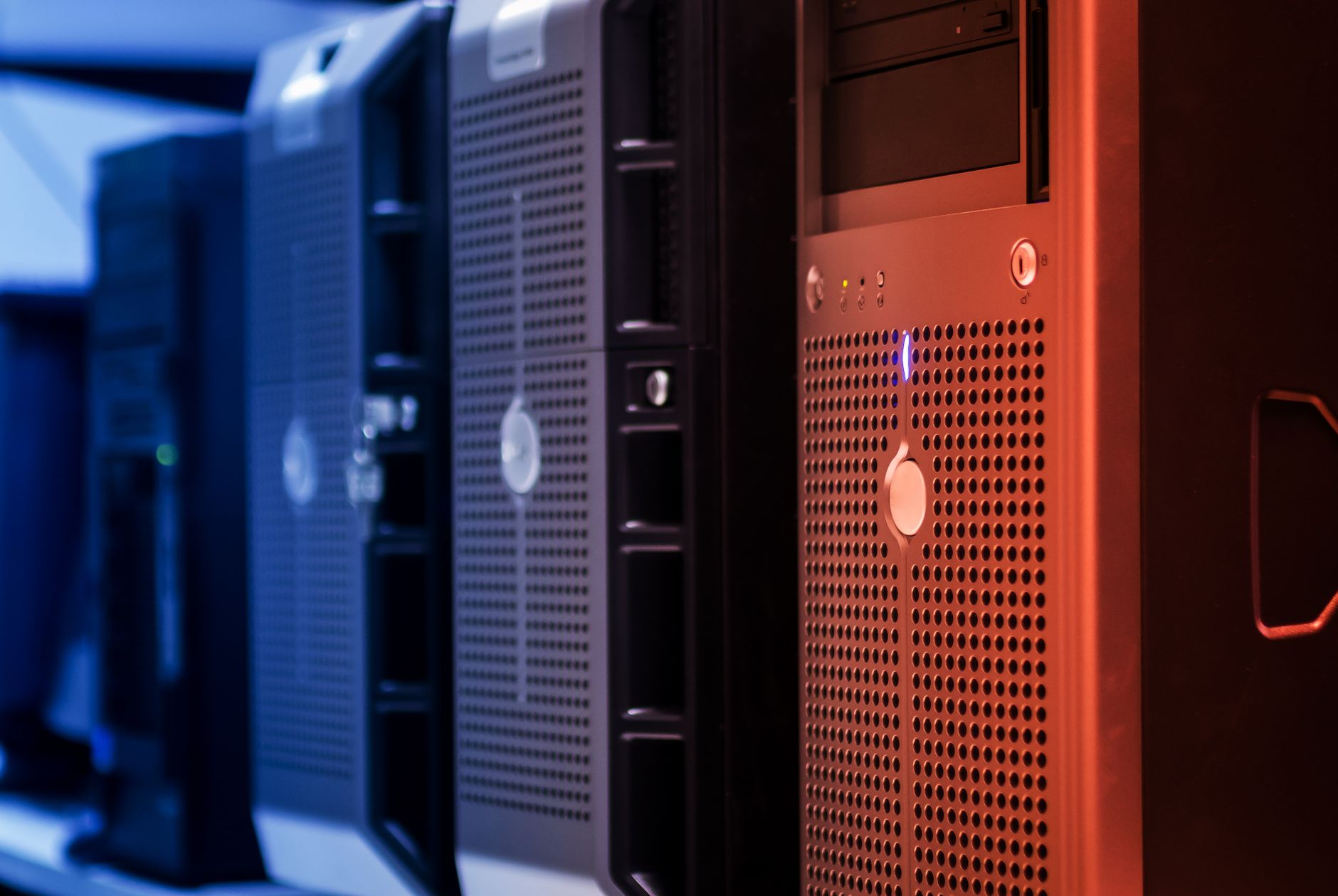
What Happens When a Computer Boots Up?
The boot process starts the moment you press the power button, and the machine moves through power, firmware, bootloader, kernel, services, and desktop in that order. On a fast SSD laptop, the full sequence can finish in under 10 seconds; on an older hard drive system, 30-60 seconds is common.
First, the power supply wakes up and sends electricity to the motherboard, CPU, RAM, and storage. Then the firmware checks the hardware and picks a boot device. After that, the bootloader loads the operating system kernel into memory, and the kernel starts core drivers for the disk, keyboard, mouse, and display.
The catch: one broken step stalls the whole chain. If the firmware cannot find a bootable drive, or if the kernel image gets damaged, the computer may freeze, loop, or show a black screen.
After the kernel starts, the operating system launches startup services, login tools, and background tasks. These services handle things like network access, sound, and security. The desktop appears only after those pieces line up, which is why a machine can look “on” before it feels ready.
That sequence matters because students can trace a failure point with logic instead of guesswork. A slow boot can come from a 5400 RPM drive, a long service list, or a BIOS setting that checks old devices first. A clean boot on a modern Windows 11 or Linux system often feels instant, but the order never changes.
How Do BIOS and UEFI Start Booting?
BIOS and UEFI are the first software layers that run after power-on, and they decide whether the computer can hand control to the operating system. BIOS dates back to older PC designs from the 1980s, while UEFI became common on newer systems in the 2010s and supports larger drives and a cleaner boot flow.
During startup, firmware runs POST, which stands for Power-On Self-Test. POST checks basics like RAM, CPU, keyboard input, and storage presence before it moves on. If the firmware sees a serious problem, it can beep, flash an error code, or stop before the bootloader ever loads. That is not a small detail; it is the first real gate in the whole process.
Reality check: firmware does not start your apps or open files. It only checks enough hardware to find a valid boot path and hand control to the next stage.
UEFI usually starts faster than classic BIOS because it can discover hardware in a more organized way and choose the boot order from a list stored in firmware memory. It can also load a boot manager from an EFI System Partition, which helps with drives larger than 2 TB. BIOS often uses older, simpler routines, and that old style can slow things down on modern hardware.
Students in an introduction to operating systems course should think of firmware as the first checkpoint, not the whole race. If POST passes, the system moves on. If not, nothing else matters yet.
Learn Introduction To Operating Systems Online for College Credit
This is one topic inside the full Introduction To Operating Systems course on UPI Study — a self-paced online class for college credit. Credit recommended by NCCRS; your college decides how credits transfer. Courses start at $250 with no deadlines and lifetime access.
Explore Operating Systems Course →Which Bootloader Steps Load the Kernel?
The bootloader sits between firmware and the operating system, and it has one job: get the kernel into memory and start it cleanly. On many Linux systems, GRUB does this work, while Windows uses its own boot manager. This stage usually lasts only a few seconds, but it decides which OS actually starts.
- The firmware picks a boot device from the order list, such as an SSD, USB drive, or internal NVMe disk.
- The firmware loads the bootloader into memory and hands over control, often after a POST that completes in under 1 second on modern systems.
- The bootloader finds the operating system image, checks the boot entry, and chooses the right kernel version.
- The bootloader places the kernel and any needed startup data into RAM, then points the CPU at the kernel’s first instructions.
- The kernel starts running, mounts the root file system, and begins low-level hardware setup before user space starts.
Why Does the Operating System Need Startup Services?
The kernel gets the machine running, but startup services make it usable for people, and that gap matters in any introduction to operating systems course. The kernel manages memory, processes, and hardware access; services handle the rest, including networking, sound, login screens, and device helpers. On a typical desktop, dozens of services may start within 5-20 seconds after the kernel loads.
Drivers come first because the system needs a working bridge to the GPU, Wi-Fi card, printer, and audio chip. Then service managers like systemd on Linux, launchd on macOS, or the Service Control Manager on Windows start background tasks in a set order. A machine without those services can boot the kernel and still feel half-dead.
What this means: the desktop is the last visible step, not the first useful one. A login screen appears only after enough services start to support user accounts, input devices, and display output.
This is where students often mix up “booted” with “ready.” A laptop can show a wallpaper in 12 seconds and still keep working in the background for another 8-15 seconds while cloud sync, updates, or security tools finish loading. That delay annoys people, but it also keeps the system stable.
I like this part of the boot story because it shows that operating systems do quiet work before they do flashy work. The kernel does not act alone, and that design keeps the system from turning into a pile of random code.
How Can Students Connect Boot Stages Clearly?
A clean memory chain helps a lot here: power, firmware, bootloader, kernel, services, desktop. That six-part line turns a fuzzy process into a story you can say out loud in 20 seconds, which helps on exams, lab demos, and class talks. If you can place BIOS or UEFI before the bootloader, and the bootloader before the kernel, you already understand the backbone of startup. The hard part is not the order. It is remembering what each piece actually does without jamming them together.
- BIOS or UEFI checks hardware first, using POST and boot order.
- GRUB or another bootloader loads the kernel from disk into RAM.
- The kernel starts memory, process, and device control.
- Drivers and services add Wi-Fi, sound, login, and display support.
- The desktop appears last, after the system has enough working pieces.
Frequently Asked Questions about Operating Systems
A computer boots up by running firmware first, then loading the bootloader, then starting the operating system kernel, and finally launching startup services before you reach the desktop. On a UEFI system, that first check happens in seconds, and the whole chain starts the moment you press the power button.
First, you press the power button and the firmware wakes up the hardware, checks memory, storage, and basic devices, then hands control to the bootloader. After that, the kernel loads drivers and system services, and the login screen or desktop appears.
This matters for anyone who uses a PC, Mac, or laptop, but you don't need every low-level detail unless you study computer repair, operating systems, or IT support. A student in an introduction to operating systems course, a gamer fixing startup errors, and an office worker all benefit from knowing the 4 main stages.
5 to 60 seconds is a normal boot range on many modern machines, and fast SSD systems often finish closer to 10 to 20 seconds. Slow drives, extra startup apps, and full disk checks can push that longer, especially on older laptops.
The most common wrong assumption is that the operating system starts first, but firmware starts first and only then does the bootloader hand off to the kernel. BIOS or UEFI checks hardware, finds a boot device, and starts the chain.
What surprises most students is that the desktop can appear before the computer feels ready, because startup services keep loading in the background. Your screen may show in under 20 seconds, while cloud sync, printer tools, and security apps still start after login.
If you mix them up, you can miss the real reason a machine won't start, like a bad boot order, a missing EFI file, or a failed kernel load. You also lose points fast in a computer class because the sequence from firmware to bootloader to kernel has to stay in order.
Most students memorize the words BIOS, UEFI, and bootloader, but what actually works is tracing the full chain from power button to desktop in order. Start with firmware, then bootloader, then kernel, then startup services, and you can explain the process in 4 clean steps.
BIOS or UEFI starts the boot process by waking the system, checking hardware, and finding a bootable device like an SSD, HDD, or USB drive. BIOS uses older 16-bit style startup rules, while UEFI supports newer features like GPT and a graphical setup screen.
The bootloader loads the operating system kernel into memory and passes control to it, which is why it's the bridge between firmware and the OS. GRUB on Linux and Windows Boot Manager on Windows are common examples, and each one points the machine to the right kernel file.
Startup services are the background programs that start after the kernel loads, and they explain why an introduction to operating systems course covers more than just the desktop. That same course often connects boot stages to college credit, online course work, and ACE NCCRS credit through study online programs.
Understanding booting helps you pass labs and exams in an online course because you can explain firmware, kernel loading, and startup services in one clear sequence. That matters in an introduction to operating systems course that can count toward transferable credit when the program lists ACE NCCRS credit.
Final Thoughts on Operating Systems
Booting looks simple from the outside, but it runs like a relay race with six runners. Power comes first. Firmware checks the field. The bootloader hands off the baton. The kernel starts the rules of the system. Drivers and services fill in the missing pieces. The desktop shows up last, after the machine can actually help a person do work. That order matters because it gives you a clean way to think about computer startup. If a laptop fails before the logo appears, look at power, firmware, or boot order. If it fails after the logo but before login, look at the bootloader, kernel, or a broken driver. If it reaches the desktop but feels slow, the problem usually lives in startup services, background apps, or storage speed. A 5400 RPM drive and an SSD can feel like two different worlds. Students who can say this sequence out loud usually do better in class because they stop memorizing scraps and start seeing the structure. That shift helps in labs, quizzes, and interviews, and it also makes the whole topic less weird. Practice the chain once without notes, then explain it again using one real example from a Windows, macOS, or Linux machine.
How UPI Study credits actually work
Ready to Earn College Credit?
Credit recommended by NCCRS · Self-paced · Your college decides how credits transfer · $250/course or $99/month (US)