
ID verification for online exams usually starts with a government-issued photo ID, a webcam, and a quick check of your testing space before the exam opens. Some setups add a full-face selfie, a student card, or browser prompts that lock down other apps. That is the normal shape of online exam proctoring, not some mystery ritual. What students should expect from proctored exams looks simple on paper and clunky in real life. You may hold your ID close to the camera, turn your laptop 360 degrees, speak a few words for audio checks, and wait while software scans for extra tabs or blocked permissions. A quiet room, decent lighting, and 1 working webcam matter more than people expect. The tricky part sits in the differences. Live proctoring puts a person on the other end in real time. Recorded proctoring stores video and audio for later review. Automated monitoring watches for patterns like eye movement, screen changes, or connection drops. Each setup has its own rules, and those rules can change by course, provider, and receiving institution. That means two students can take the same subject and face very different check-in steps. Remote exam security can feel strict because schools want a clean record of who took the test and what happened during the session. The process can also feel awkward, especially if your room is small, your internet hits 25 Mbps one minute and 3 Mbps the next, or your browser blocks a microphone permission at the worst time.
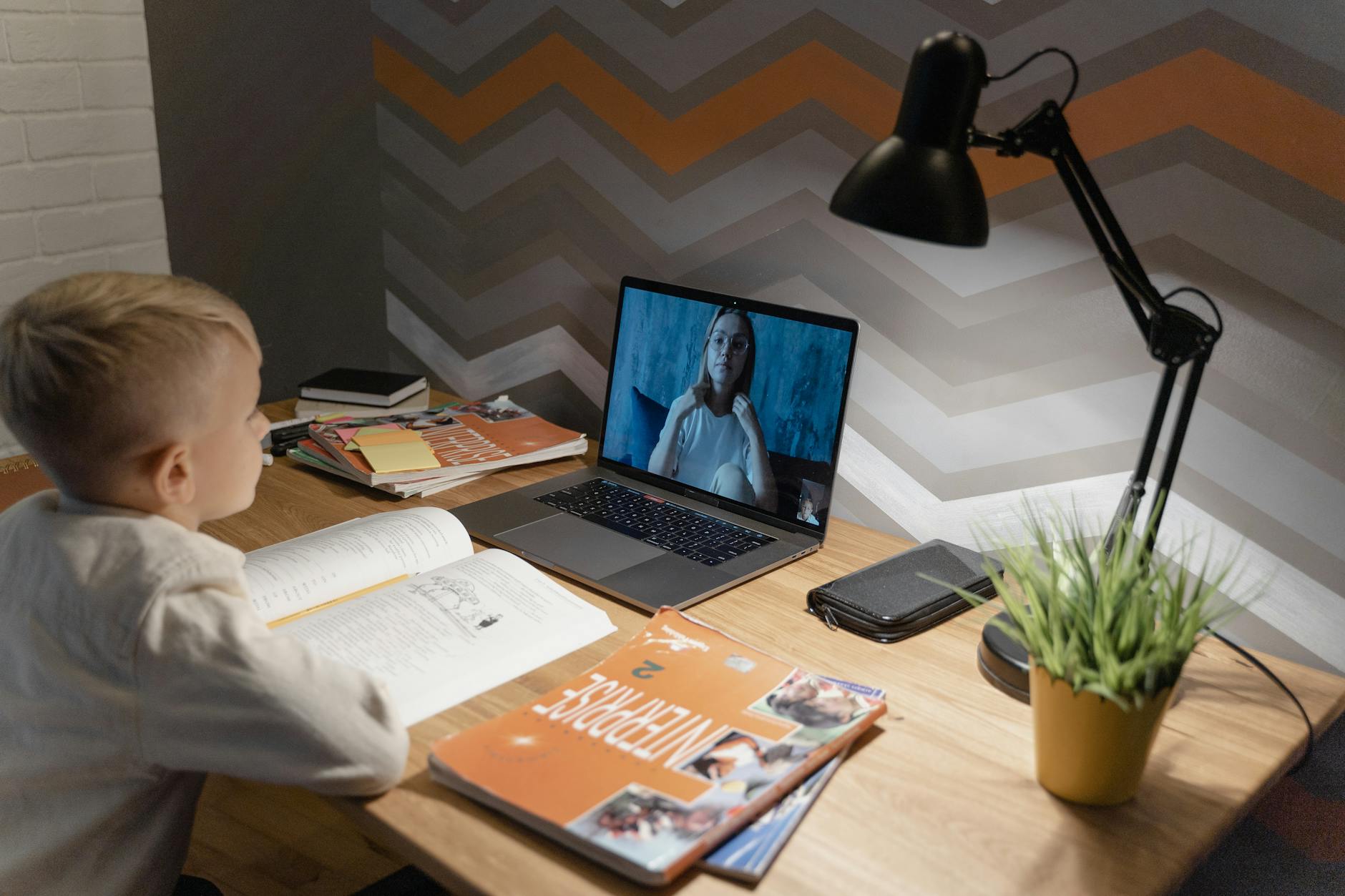
What Does ID Verification Usually Ask For?
ID verification for online exams usually asks for a government-issued photo ID, a clear face shot, and matching name details before the proctor lets the exam start. A driver’s license, passport, or national ID card usually works, but the name on the account and the name on the ID must line up closely, down to middle initials in some systems.
The catch: Some platforms add a second check, like a student card, a live selfie, or a 4-digit code the system sends during sign-in. That extra step sounds small, but it can stop a session fast if your lighting is bad or your camera blurs the text on the ID.
Expect the proctor or software to look for 3 things at once: your face, the ID photo, and the document edges. A cracked webcam, a glare from a desk lamp, or a passport cover left on the page can slow things down by 5 to 10 minutes, which feels longer when the clock has already started.
Requirements vary a lot. One provider may want a passport and a full-face photo, while another may accept a driver’s license and a short ID scan. A receiving institution can also set its own rule for what counts as valid proof, so there is no single universal script for online exam proctoring. That part frustrates students, but it also explains why one friend breezes through a check and another gets bounced back for a tiny mismatch.
Clean lighting helps more than people think. A desk lamp pointed at your face and an ID held flat to the camera usually works better than ceiling light alone, especially if the room has dark corners or a shiny background.
How Do Proctored Exam Check-In Steps Work?
The check-in flow usually takes 10 to 20 minutes before the exam opens, and the steps happen in the same rough order every time: login, identity check, room scan, device check, then the start button. Some systems move fast, while others pause for a manual review that eats another 5 minutes.
- Log in 15 to 30 minutes early so you can handle updates, password resets, or browser prompts without losing exam time.
- Show your government-issued ID to the camera and wait for the name and face match to clear. A mismatch at this point can stop the session before question 1.
- Use the webcam to show your face, desk, and nearby area, then scan the room if the software asks for a 360-degree view. A tiny desk is fine; a messy desk with notes in sight is not.
- Close unauthorized apps, extra tabs, cloud drives, and messaging tools. One notification at the wrong second can trigger a flag, especially on laptops running 2 monitors or synced calendars.
- Follow the software prompts for microphone access, screen sharing, and browser lockdown. If your browser blocks permissions, fix it before the exam timer starts, not after.
- Keep your charger, ID, and any allowed materials within reach before you click start. That one habit saves more sessions than people admit.
Worth knowing: Many check-in problems happen before the first question, not during the exam itself. That is why students who test on a borrowed laptop or a shared home connection often feel the process more than students who use one setup every week.
Which Proctoring Type Should You Expect?
The setup changes because schools do not all use the same proctoring model. One course may use a live proctor at a set time, while another records the whole session for later review, and a third uses automated flags with no human watching in real time. That difference matters because the check-in feel changes fast, and so do the mistakes that get noticed.
| Proctoring type | What students do | What is monitored | Common issues to avoid |
|---|---|---|---|
| Live proctoring | Show ID, room, webcam, wait for approval | Real-time video, audio, screen | Late arrival, noise, hidden notes |
| Recorded proctoring | Complete check-in, then test normally | Video and audio review later | Eye drifting, off-camera movement, extra devices |
| Automated monitoring | Follow browser prompts and stay visible | Software flags, screen activity, face tracking | Pop-ups, tab switching, weak internet |
| Mixed setup | Do both check-in and live or recorded steps | People + software | ID mismatch, poor lighting, room scan errors |
Reality check: Mixed systems cause the most confusion because they combine a person, software, and a rule set that can shift by course or term. A student can pass the ID check and still get stuck on one browser permission or one noisy hallway outside the room.
The Complete Resource for Online Proctoring
UPI Study has a full resource page built specifically for online proctoring — covering which courses count, how credits transfer to US and Canadian colleges, and how to get started at $250 per course with no deadlines.
Browse UPI Study Resources →Why Do Webcam Exam Requirements Feel Strict?
Webcam exam requirements feel strict because remote exam security depends on being able to see 3 things at once: your face, your screen behavior, and the room around you. If the camera only catches your forehead, the proctor cannot tell whether you glanced at notes, checked a phone, or just leaned too close to the laptop.
Audio matters too. A microphone lets the system hear side talk, background TV noise, and the kind of whispered self-talk that sounds harmless in a bedroom but looks suspicious on a recording. Some platforms also check for device rules like 1 screen only, no second monitor, and no Bluetooth earbuds. That sounds fussy, and honestly, it is fussy, but it cuts down on cheating claims and messy reviews.
Lighting causes more trouble than most students expect. A dark room, a bright window behind you, or a lamp pointed the wrong way can make your face look washed out or invisible. Internet speed does the same kind of damage. A connection that drops from 50 Mbps to 2 Mbps during a 90-minute exam can freeze video, blur audio, or force a recheck that eats time.
Browser permissions trip people up every week. Camera blocked. Mic blocked. Screen share blocked. One small toggle in Chrome, Edge, or Safari can stop the whole session. That part feels silly until you sit in front of the clock and watch the software wait for a setting you forgot existed.
Poor setup rarely means bad intent. It usually means a crowded apartment, a shared room, or a laptop that has not been tested since the last term.
What Problems Cause Proctoring Flags?
A proctoring flag often comes from one small slip, not some dramatic event, and a review can take 24 hours or longer depending on the provider. The flag does not automatically mean cheating, but it can delay results or force a retake.
- Looking away too often can trigger review, especially if your eyes leave the screen every 10 to 15 seconds.
- Leaving the camera frame even once can look worse than it feels, because the recording only sees the empty chair.
- An ID mismatch, like a nickname on the account and a full legal name on the document, can stop approval fast.
- Prohibited materials in view, including a second phone, sticky notes, or an open textbook, usually draw immediate attention.
- Software updates and pop-up notifications can break the session, especially on Windows laptops that restart for an update at the wrong time.
- Connection drops, even short ones, can create a rough record if the screen freezes for 20 to 30 seconds.
Bottom line: Most flags come from behavior the system cannot explain, not from proof of cheating. That makes them annoying, but it also makes prep worth the extra 15 minutes.
Should You Rely On Provider Approval?
No provider can promise transfer, exam approval, or proctoring acceptance outcomes, and anyone who says otherwise is selling certainty they do not control. Course rules, provider rules, and receiving-institution rules all shape the result, and those rules can change between a spring 2026 term and a fall 2026 term.
A school may approve 1 online exam setup and reject another setup that uses the same webcam, the same ID, and the same subject. That does not mean the system is broken. It means remote testing sits inside several rulebooks at once, and the strictest one usually wins.
If you want a cleaner process, read the exam instructions before test day, test your webcam and mic, and save screenshots of any browser permissions or room-scan steps. A 10-minute prep run catches more problems than a last-second scramble ever will.
For more help with practical exam guidance, explore the resources page and look for plain steps on id verification for online exams, online exam proctoring, and what to expect from proctored exams. A second useful read is Ethics in Technology if you want a sharper sense of why remote exam security rules keep getting tighter.
A lot of students also like Business Law because it gives a better frame for rules, records, and responsibility, which is the part most people only think about after a flag shows up.
Frequently Asked Questions about Online Proctoring
Most students think they just show an ID once, but what actually works is a full check: you hold up a government-issued ID, match your face on webcam, and follow the proctor’s prompts before the exam starts. A driver’s license, passport, or national ID usually works; a school card usually doesn’t.
ID verification for online exams usually takes 5 to 15 minutes, and that wait matters because the proctor checks your ID, your face, and sometimes the exam room before launch. If your name, photo, or expiration date looks off, the system can slow down fast.
This applies to you if your course, testing provider, or receiving school uses online exam proctoring, and it doesn’t apply if your exam runs as open-book, unproctored, or in a normal LMS quiz. A university final, certification test, and placement exam can each use different rules.
If you get the webcam exam requirements wrong, the session can pause, restart, or get rejected before you even begin. Common mistakes include a dead microphone, no front-facing camera, poor lighting, or a browser block that stops screen sharing and room checks.
The most common wrong assumption is that proctoring only watches your screen, when online exam proctoring often also tracks your face, voice, clicks, and tab changes. Some systems flag a second person in the room, repeated looking off-screen, or missing audio input.
What surprises most students is how much setup happens before the first question: you may scan the room, show your desk from 4 sides, and install secure browser software before you can click Start. That first check can take longer than the test login itself.
Recorded proctoring stores your webcam, mic, and screen for review later, live proctoring puts a person in the session, and automated monitoring uses software rules to flag problems in real time. Live sessions can interrupt you right away; recorded systems usually review after the exam.
Start by testing your webcam, microphone, and internet 24 hours before the exam, then clear your desk and get your ID ready. If the software asks for a browser lock, camera test, or room scan, follow each prompt in order and don’t skip a step.
No, id verification for online exams usually requires a current government-issued photo ID like a passport, driver’s license, or national identity card. Expired IDs, student cards, and membership cards often get rejected because they don’t match the security check.
You should expect a warning, a pause, or a manual review if the system spots noise, extra movement, a dropped connection, or a face mismatch. Many platforms save a timestamped recording, so even a 10-second issue can get reviewed later.
No, UPI Study can’t guarantee transfer, exam approval, or proctoring acceptance outcomes, because course rules, provider rules, and receiving institution rules can all differ. UPI Study can explain the process and share resources, but the final call sits with the school or exam provider. Explore UPI Study’s resources page for more help.
Final Thoughts on Online Proctoring
Online exam proctoring looks harsher before you see it in action. After that, the pattern becomes clearer. Show your ID. Keep your face visible. Stay in the frame. Follow the browser prompts. Avoid the obvious stuff that triggers flags, like extra tabs, a second screen, or a noisy room. The hard part is not the idea. It is the setup. A student with a clean desk, a working webcam, and a stable connection usually has a smoother run than someone trying to improvise with a borrowed laptop and a phone that keeps buzzing on the side. Live, recorded, and automated systems all watch for different things, so the same habit can matter more in one setup than another. That is why reading the rules before test day saves so much grief. A 15-minute check of your ID, microphone, lighting, and browser permissions can spare you a failed session, a review delay, or a retest. If your exam uses proctoring, treat the check-in like part of the exam, not a warm-up. Set the room first. Then start.
What it looks like, in order
Ready to Earn College Credit?
ACE & NCCRS approved · Self-paced · Transfer to colleges · $250/course or $99/month