
Linux user and group accounts work by mapping every login to numeric IDs, then checking those IDs against file and directory permissions. Names matter for humans, but Linux itself cares about UID, GID, and the account files under /etc. That is the whole trick. A user account in Linux holds more than a username. It also points to a home directory, a login shell like /bin/bash or /usr/sbin/nologin, and a primary group that controls default group ownership. One person can also belong to 3, 10, or 30 extra groups, and Linux checks all of them when it decides access. This matters because bad account design causes real damage. A user with the wrong UID can see the wrong files. A group with 20 members can hand out write access too widely. An admin who knows the files, fields, and rules can fix that fast instead of guessing. If you study an Introduction to Linux course, this is one of the first topics you need to get right. The admin side also shows up in school and work settings. A clean account setup helps with shared lab machines, server access, and transfer credit work tied to an Introduction to Operating Systems course or an Network and Systems Security class, because identity and permissions sit at the center of every Linux system.
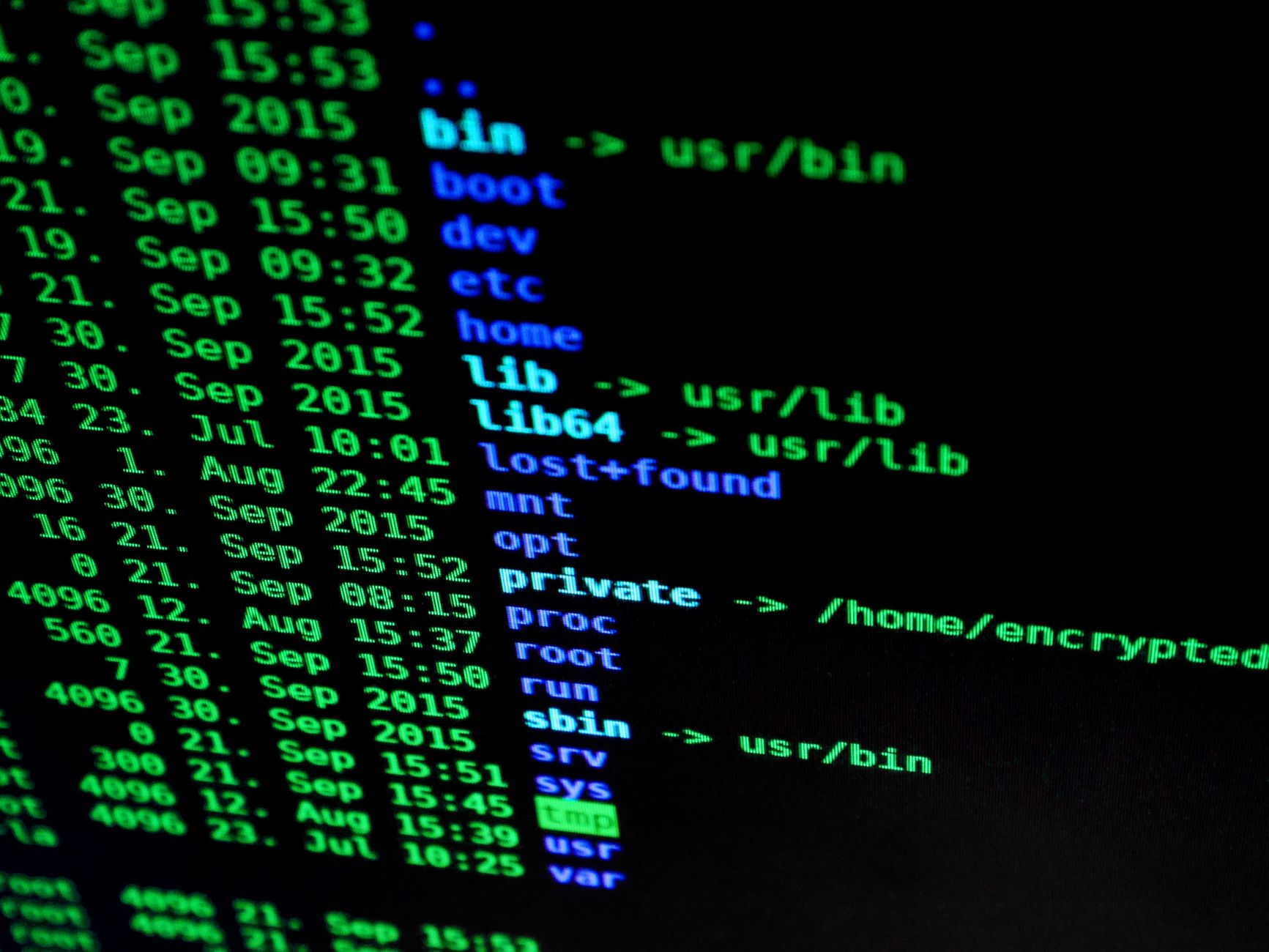
How Do Linux User Accounts Actually Work?
A Linux user account works as a numeric identity first and a name second: the kernel tracks a UID, then checks that UID against file ownership, group membership, and 3 permission classes. That is why two accounts with similar names still behave differently.
Every login maps to one primary UID. The username is just a label for people, while the UID tells Linux who you are on disk and in memory. A normal local user often gets a UID above 1000 on many systems, while the root account uses UID 0. That number 0 still runs the show because the kernel treats it as full power.
Reality check: A user record does not only store identity. It also stores a login shell, such as /bin/bash, and a home directory, such as /home/alex, so the system knows where to start the session and where to look for files.
Linux also assigns a primary group, then adds optional supplemental groups. A student account might belong to 1 primary group and 4 extra groups, like audio, docker, and sudo, while a lab account might belong to none of those. The shell starts after authentication, but the kernel already knows the UID and all group IDs before the first prompt appears.
That separation matters. Names can change. IDs usually stay stable. If you rename a user from sara to sara2 and keep UID 1051, the file access still works because the kernel never cared about the spelling in the first place.
Which Linux Files Store User Account Data?
Linux keeps account data in a few plain-text files under /etc, and each file has a different job. The main ones are /etc/passwd, /etc/shadow, /etc/group, and sometimes /etc/gshadow; together they hold the 4 records Linux uses for users and groups.
- /etc/passwd stores the visible user entry: username, UID, primary GID, home directory, and login shell. The password field usually shows x, which means the real password data lives somewhere else.
- /etc/shadow stores password hashes plus aging data like last change date, minimum days, maximum days, warning days, and account expiry. That separation keeps hashes out of the world-readable file.
- /etc/group stores group name, GID, and member list. It also shows which users belong to a group without making them the primary owner of every file.
- /etc/gshadow stores protected group password data and admin lists. Many systems leave the password field as ! or x so regular users cannot manage group secrets.
- A typical passwd entry looks like name:placeholder:UID:GID:comment:home:shell. The fields matter because Linux reads all 7 parts when it builds the session view.
- A shadow entry can include dates measured in days since 1970-01-01, which sounds ugly but gives admins exact aging control. That old-school format works, but it is not friendly to eyeballs.
Learn Introduction To Linux Online for College Credit
This is one topic inside the full Introduction To Linux course on UPI Study — a self-paced, online class that earns real college credit. Credits are ACE and NCCRS evaluated and transfer to partner colleges across the US and Canada. Courses start at $250 with no deadlines and lifetime access.
Browse Introduction To Linux →How Are Linux Groups Assigned And Used?
Linux groups let 2 or 200 users share access without turning every file into a free-for-all. Each account gets one primary group at creation, then the admin can add any number of supplemental groups for shared work, services, or lab access.
The primary group often matches the username, like maya:maya, so new files land with a predictable group owner. That helps in home directories and project folders because the system can apply a default group from the start. Supplemental groups work differently. They live in /etc/group and show up as comma-separated members, so one user can belong to wheel, audio, and developers at the same time.
What this means: A user can carry 1 primary group plus 10 extra groups and still log in once, because Linux checks the whole group list during access checks, not just the first line in /etc/passwd.
That setup matters in real admin work. A shared research folder might give write access to the bio group, while a server admin team might use sudo or wheel for controlled privilege. If a user sits in the wrong group, they get the wrong power. If you remove them from a group, they usually need a new login session before the change shows up.
This is also where sloppy design bites. People stuff too many accounts into one group and call it done. That saves 5 minutes today and creates a mess later when someone leaves or when one folder needs tighter control.
Why Do Linux Permissions Depend On Accounts?
Linux permissions depend on accounts because the system checks owner, group, and other bits before it lets anyone read, write, or run a file. A file with 640 means the owner can read and write, the group can read, and everyone else gets nothing.
Directories add a twist. Execute on a directory means you can enter it and access names inside it, even if you cannot read the full listing. That is why a folder with 750 can work for a team while still keeping outsiders out. Miss that detail and you get the classic complaint: “I can see the file name, but I cannot open it.”
Bottom line: Linux permission checks use numeric IDs, so a bad UID or a stray group membership can expose files to 1 wrong account or block 1 right one.
Good account design keeps privilege small. A web server account should not own personal files. A teaching account should not sit in wheel unless it truly needs admin rights. That is plain common sense, and Linux rewards common sense with cleaner access control.
The weak spot comes from human error, not magic. If an admin copies the wrong UID into /etc/passwd, two different names can point at the same identity. That can merge file access in ways nobody planned, and the fix often takes longer than the original mistake took to make.
What Happens When You Add A Linux User?
Adding a Linux user creates a new identity chain in 1 pass: the system writes account data, assigns IDs, and sets up home and group details before the first login. On a local machine, that change usually hits /etc/passwd and /etc/shadow right away.
- The admin creates the account entry with a username and a numeric UID. Most local systems place regular users above 1000, while UID 0 stays reserved for root.
- The system assigns a primary GID and links the user to a base group. That group controls default file ownership from the first new file onward.
- The admin sets the home directory and login shell, such as /home/lee and /bin/bash. A shell like /usr/sbin/nologin blocks interactive access on purpose.
- The system initializes password data in /etc/shadow, then the admin sets or locks the password. Password aging can start on day 0 and use day-based limits after that.
- The admin adds supplemental groups like sudo or docker if needed, and the user gets those rights on the next login or new session, not halfway through the old one.
The catch: Group changes do not magically refresh in an already open terminal, so a user often needs to log out and back in before the new access shows up.
That sequence sounds simple, and it is, but the details matter. A missed shell path can lock someone out. A wrong GID can break shared folders. A bad password placeholder can leave an account open longer than you wanted.
Frequently Asked Questions about Linux Accounts
If you get Linux user and group files wrong, logins can fail, files can lock up under the wrong owner, and sudo-style admin access can break fast. Linux reads identity from /etc/passwd, /etc/shadow, /etc/group, and /etc/gshadow, so one bad edit can affect every permission check.
Linux stores user names, IDs, home folders, and login shells in /etc/passwd, while /etc/shadow stores hashed passwords and aging data. /etc/group lists group names, GIDs, and members, and /etc/gshadow keeps protected group password data and admin lists.
What surprises most students is that a user can belong to several groups at once, and Linux checks the primary group plus any supplementary groups. A file gets access based on the user ID, group ID, and mode bits like 644 or 755, not just the login name.
Four files do most of the work: /etc/passwd, /etc/shadow, /etc/group, and /etc/gshadow. If you understand them, you can handle managing accounts users in linux files groups user without guessing why a user can read one file but not another.
The most common wrong assumption is that the username controls permissions by itself. Linux uses numeric IDs under the hood, so UID 1001 and GID 1002 matter more than the text label you see in the terminal.
This applies to anyone using a Linux system with multiple users, shared folders, or admin rights, including students in an introduction to linux course and people who study online. It doesn't stop at one distro, because Ubuntu, Debian, and Fedora all use the same core account files.
Most students keep changing file names and hope the access problem goes away, but Linux permissions work from ownership and group membership first. Change the owner with chown, change the group with chgrp, and check the mode bits with ls -l.
Start with id username, because it shows the UID, primary GID, and every extra group in one shot. Then check /etc/passwd and /etc/group if the account looks wrong, since those files tell you whether the login entry or group list got edited badly.
A good introduction to linux course can map cleanly to college credit when it includes user IDs, group IDs, and permission rules, and some schools pair it with ace nccrs credit. That matters because account management is the same skill you use in labs, servers, and support work.
Linux user and group accounts work by tying each action to a UID, a GID, and stored records in /etc/passwd, /etc/shadow, /etc/group, and /etc/gshadow. That setup lets you give one user write access to a shared folder, keep another out, and audit who owns what with exact numbers.
Final Thoughts on Linux Accounts
Linux user and group accounts look simple on the surface, then they start running your whole system. UID, GID, /etc/passwd, /etc/shadow, and /etc/group decide who can log in, who owns files, and who can touch shared data. Names help humans, but numbers drive access. That is why admins care so much about setup order. Create the account. Assign the right IDs. Put the user in the right groups. Pick the right shell. Get one step wrong and you do not just create a small glitch. You create a permission problem that can spread across 1 folder or 1000. The cleanest Linux setups keep identity boring. That sounds dull, and that is exactly the point. Boring accounts make backups easier, audits faster, and shared work less painful. Messy accounts do the opposite. They turn every file check into a guess. If you want to work well with Linux, learn the account files first, then practice reading real entries until you can spot UID, GID, home directory, and shell in a few seconds. That skill pays off every time you set up a machine, fix access, or clean up a system that somebody else left in a bad state.
How UPI Study credits actually work
Ready to Earn College Credit?
ACE & NCCRS approved · Self-paced · Transfer to colleges · $250/course or $99/month