
Basic text editors in Linux are simple tools for plain text, not fancy document apps. You use them to edit config files, write notes, change scripts, and fix small mistakes fast. Two common types matter most: terminal editors like nano and graphical editors like gedit or other desktop apps. That split matters because Linux work happens in two places. Sometimes you sit at a desktop with a mouse and a file manager. Other times you sit in a terminal, maybe over SSH, and you only get a text screen. In both cases, the job stays the same: open a file, make a change, save it, and leave without wrecking the file. A nursing student in an Introduction to Linux course does not need 20 editor features. You need the 3 or 4 moves that solve real problems: move the cursor, type a line, save with the right shortcut, and exit cleanly. That sounds tiny, but tiny mistakes can break a shell script or a system file in less than 1 minute. Linux text editors also handle plain text only. They do not care about page layout or images. That makes them fast, light, and useful for files like .conf, .sh, .txt, and .log. If you can handle those basics, you can do real work from the terminal or the desktop without guessing.
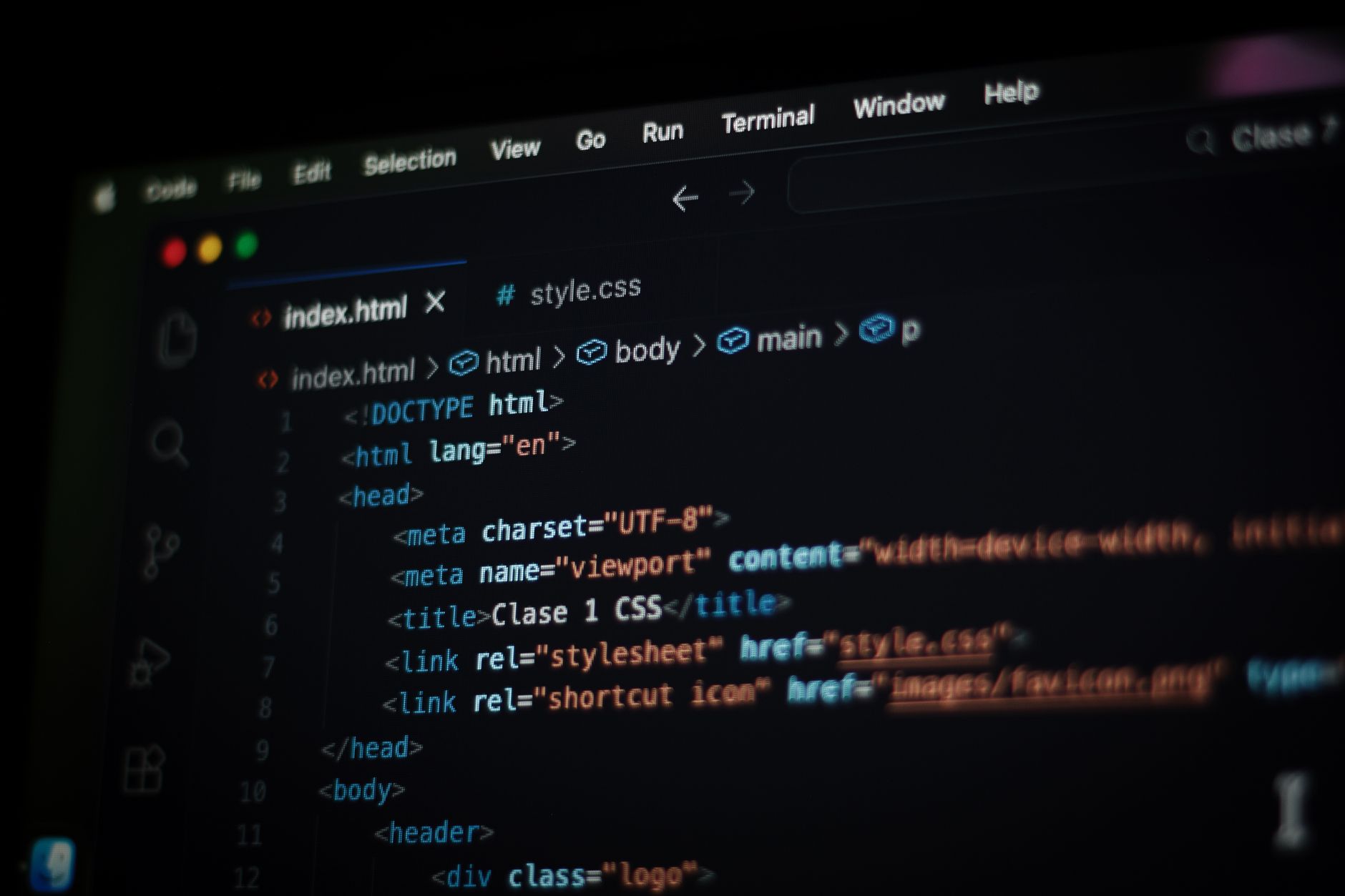
What Are Basic Linux Text Editors?
Basic Linux text editors are small programs built for plain text, and they usually do 4 jobs well: open a file, let you move around, save changes, and close cleanly. Terminal editors run inside a shell window, while graphical editors open in a desktop window with menus and buttons.
These tools stay light on purpose. A terminal editor like nano can work in a 1-tab SSH session on a remote server, and a graphical editor like gedit can open from a menu on Ubuntu, Linux Mint, or Fedora. Neither one tries to act like Microsoft Word. That is the point.
Students use them for config files, notes, scripts, and quick fixes. A .conf file may only need 1 line changed. A shell script may need 2 characters added. A note file may need a date, a hostname, or a password reminder. Those jobs do not need a giant app with 50 buttons.
The catch: Basic editors only understand plain text, so they strip out rich formatting and focus on the file itself. That makes them perfect for Linux work, but terrible for people who want fonts, tables, and page layouts.
Most beginners start with 2 habits: learn how to save before you make a risky change, and learn how to back out if a file looks wrong. That sounds simple, but it saves time when you edit /etc/hosts, a bash script, or a startup file in under 5 minutes.
The best basic editors feel boring in a good way. They get out of your way and let you edit the file, not fight the app.
Which Linux Editors Should Beginners Try First?
Three beginner-friendly editors cover most everyday Linux tasks: nano for fast terminal work, gedit for simple desktop editing, and visual editors such as Visual Studio Code for people who want more tools later. The right pick depends on where you work, not on some fake idea of the “best” editor.
| Editor | Runs Where | Ease for Beginners | Best Use |
|---|---|---|---|
| nano | Terminal | Very easy; shortcuts shown at bottom | Quick SSH edits, config files |
| gedit | Desktop GUI | Easy; menus and mouse support | Notes, local text files |
| Visual Studio Code | Desktop GUI | Moderate; more features, more setup | Code files, larger projects |
| vim | Terminal | Harder at first | Server work, advanced terminal use |
| Leafpad / Mousepad | Desktop GUI | Very easy | Tiny edits, fast saves |
Worth knowing: nano and gedit win for first-week use because they cut the learning curve hard. vim has power, but it punishes rushed beginners, and that tradeoff bites people who only need to change 1 line.
Learn Introduction To Linux Online for College Credit
This is one topic inside the full Introduction To Linux course on UPI Study — a self-paced, online class that earns real college credit. Credits are ACE and NCCRS evaluated and transfer to partner colleges across the US and Canada. Courses start at $250 with no deadlines and lifetime access.
Browse Introduction To Linux →How Do You Open, Save, and Exit Linux Editors?
Most editor mistakes happen in the first 30 seconds: people open the wrong file, type the right change, then exit the wrong way and lose the work. The fix is simple if you learn the sequence once and repeat it.
- Open the file from the terminal with a command like
nano file.txtor from the desktop by double-clicking it in a file manager. If you use SSH, the terminal route matters because you may not have a GUI at all. - Move the cursor to the right spot, then make a small change first. A 1-line edit is safer than a full rewrite when you touch config files such as
/etc/hostsor a shell script. - Save with the editor’s own shortcut. In nano, press
Ctrl+Oand then Enter; in gedit, pressCtrl+S. If you wait more than 10 minutes on a risky file, save before you keep editing. - Exit with the correct command after saving. Nano uses
Ctrl+X, while many desktop editors close withCtrl+Qor the window button; different editors do not share one universal exit key. - Watch for prompts that ask about saving unsaved changes. Say yes only if you want the change to stay, because one wrong “No” can wipe out 15 minutes of work.
Bottom line: Learn the save shortcut first, not last. That one habit keeps a tiny typo from turning into a lost file, and it matters more than memorizing 12 menus.
Why Do Linux Editors Feel So Different?
Terminal editors feel fast because they live inside the same window you already use for commands, and that matters a lot on remote servers where you may only get an 80x24 text screen. Graphical editors feel easier because they show menus, buttons, and mouse clicks, which helps when you only want to change 2 lines and move on.
The speed difference shows up fast. On a local desktop, a GUI editor like gedit can feel friendly in 5 seconds. On a remote machine over SSH, nano can beat a GUI because it works over plain text and does not need a display server. That is why server admins keep terminal editors close.
Learning curve matters too. Nano teaches you with on-screen shortcuts, so you see Ctrl+O and Ctrl+X right there in the editor. Vim asks for more memory and more patience, and I think beginners waste time there when they only need simple edits. A mouse also helps some people, especially when they edit longer notes or code files with 200+ lines.
Reality check: No editor wins every time. Terminal tools help on servers and rescue systems, while GUI tools help on desktops with a normal login session and a working mouse.
Some students hear that “real Linux users” only use the terminal. That claim is lazy. Use the tool that fits the job, not the one that makes you feel cool for 10 minutes.
When Should You Use a Linux Editor?
A basic editor makes sense any time the job is small, plain, and time-sensitive. If the task takes 2 minutes or less, picking the right editor matters more than picking the fanciest one.
- Use a terminal editor like nano when you edit a config file over SSH. That works well on servers, routers, and cloud machines where no desktop exists.
- Use gedit or another GUI editor when you write longer notes on a desktop. A mouse helps when you scan 1,000 words or fix a few lines in a text draft.
- Use a visual editor like Visual Studio Code when you work on code files with tabs, search, or split views. It fits bigger projects better than a bare-bones editor.
- Avoid complex tools for tiny jobs. Opening a 300 MB IDE to change 1 line in a .conf file wastes time and can distract you with 20 side panels.
- Check file permissions before you start. If Linux blocks saving a system file, you may need sudo, and that mistake shows up fast on files in /etc.
- Save before you experiment with something risky. Unsaved changes disappear in one bad close, and that hurts more when you have already typed 8 or 9 lines.
What this means: Match the editor to the task, not the other way around. Quick text, quick editor. Bigger editing job, bigger tool.
Frequently Asked Questions about Linux Text Editors
The most common wrong assumption is that you need a big app to edit files in Linux; basic text editors in Linux are small tools like nano, vi, gedit, and Mousepad that open, save, and change plain text fast. You use them for config files, scripts, and notes.
Basic text editors handle plain text only, while word processors add fonts, images, and page layout. That matters because Linux config files, shell scripts, and code need clean text with no hidden formatting, and even one extra character can break a file.
Start by typing the editor name and the file name, like `nano config.txt` or `gedit notes.txt`, then press Enter. In a terminal, that opens the file right away; in a desktop editor, you can also use File > Open and pick the file.
Most students click around and hope the file saves, but what actually works is learning the save and exit keys first. In nano, `Ctrl+O` saves and `Ctrl+X` exits; in vi, `Esc` and `:wq` matter more than mouse habits.
You should use command-line editors if you work over SSH, edit server files, or want fast text changes in a terminal, and that does not fit someone who only wants drag-and-drop editing. Desktop tools like gedit suit people who prefer a window and menus.
30 minutes is enough to learn the basics of nano or gedit: open a file, type, save, and exit. A full introduction to linux course may spend 1-2 weeks on terminal editing because students also learn permissions, paths, and config files.
The thing that surprises most students is that `vi` starts in command mode, so typing letters can move the cursor or change text instead of inserting words. Nano feels simpler because it shows shortcuts on screen and lets you type right away.
If you use a graphical editor on a remote server with no desktop, the file won't open the way you expect, and you can get stuck without a save path. On a local desktop, a terminal editor can feel slow if you only need one quick edit.
Basic editors like gedit, Visual Studio Code, nano, and vi let you edit plain text files such as `.conf`, `.sh`, and `.txt` files in Linux. You use gedit or VS Code for a windowed setup, and nano or vi for terminal work.
Yes, if your online course includes Linux labs, basic editors help you finish terminal tasks that may count toward college credit or ACE NCCRS credit in some study online programs. You still need to complete the lab work and submit the files the course asks for.
Start with opening a file, moving the cursor, saving with `Ctrl+O`, and exiting cleanly. Those 4 steps cover most simple edits in nano, and they give you enough control to change a hostname, a note, or a config line.
Saving and closing depends on the editor: in nano, use `Ctrl+O`, press Enter, then `Ctrl+X`; in gedit, click Save and close the window; in vi, press `Esc`, type `:wq`, and hit Enter.
A text editor changes plain files; an IDE adds code tools like debugging, auto-complete, and project views. If you only need to edit `/etc/hosts`, a 2-minute nano session beats opening a full IDE that eats more RAM and takes longer to load.
Final Thoughts on Linux Text Editors
Basic Linux editors are not glamorous. They are small, plain, and built for a job that matters: changing text without breaking the file. That is why students should learn 4 things early — open, move, save, exit — before they worry about advanced features or flashy screens. Terminal editors like nano help when you work on a server, inside SSH, or in a bare terminal window. Graphical editors like gedit help when you sit at a desktop and want a mouse, menus, and less friction. Neither one wins every time. The right choice depends on the place you work and the size of the change. If you plan to handle config files, shell scripts, or notes in Linux, practice on harmless files first. Change 1 line. Save it. Close it. Open it again and check the result. That 3-step drill builds confidence faster than reading a giant list of commands you will forget by next Tuesday. Students who want a stronger start should pair editor practice with real terminal work, because that is where the skill starts paying off. Learn the shortcuts, make the tiny edits, and stop treating text files like they are mysterious. They are not.
How UPI Study credits actually work
Ready to Earn College Credit?
ACE & NCCRS approved · Self-paced · Transfer to colleges · $250/course or $99/month